
Notes of the Tool Design Roundtables at GDC 2026
This year we had 3 Tool Design roundtables, lasting one hour each, with around 100 participants each. For those who have never attended a roundtable: This is a room filled with mostly game developers, from both big studios and indie studios, as well as non-game developers from manufacturers, robotics, automotive, vendors, and service providers. The folks in the room ask questions, and then anyone in the room can raise their hand to answer those questions. This information is unfiltered, as discussed by the attendees of the roundtable, written down after the fact from my own memory and some shorthand notes, so always take it with a grain of salt. Your own situation may vary. If you want to host your own roundtables, I wrote about how you can successfully do that here.
Sometimes I insert my own thoughts into these notes, and that is denoted by being (between brackets like this.)
1. Best tool design thing this year
We started off day one talking about the best tool design thing that has happened this year. This can be anything anyone has experienced this year.
Someone said their place of work required their engineers to write end of day reports, which took up a lot of engineering time. They built a tool to scrape Jira comments so that they could automatically generate the reports. Folks can then read the reports over, check them for accuracy, edit them, and submit them. They saw this made it easier for everyone to submit reports, while still keeping their regular workflow of writing Jira comments. This saved a lot of time and effort of manually writing the reports.
Then someone brought up they had made an easy way to bulk edit assets. For example: When you have to change one variable for 400 assets, doing that manually is a lot of really tedious and boring and error-prone work. Instead they had made a bulk editing tool which made it much easier for them whenever they had to change one small thing for a lot of different assets. This also saved a lot of time and effort for a manual task.
Next, someone mentioned they had built a scale checker tool for a 3D asset system that was going to be used for real life locations and an AR app. The scale checker was built in a web view, and in that web view it was made very easy to quickly see scale references such as what the size of something is next to a person. This worked really well for them and made it very easy for their clients, as well as internally at the company, to see what the sizes of assets are.
(As an aside: At the roundtables this year I heard from a few folks that they were building web interfaces for their tools. A few years ago this happened too, with some companies trying to build 3D editors with web views, but back then it did not work out and folks quickly moved away again from web interfaces. But web views are being discussed again, so maybe something in the APIs has changed that makes things much easier and better to build on the web? I am definitely interested to see where this goes and if it’s going to be successful this time around.)
2. Worst tool design thing this year
Next, we talked about the worst tool design thing that’s happened for anyone this year.
The first thing that came up was AI muck in a pipeline. It has become very easy for AI to generate a lot of stuff, whether it’s documentation, assets, or code. For some pipelines that meant you now have a lot of upkeep cost on that documentation, those assets, and that code. Even immediately after the initial generation it ca create a lot of cleanup work, so it does not save time but actually costs more time. A few folks mentioned it it has become very time consuming to deal with the influx of stuff, and for other studios to watch out for when this may happen to them. They cautioned against relying on AI assisted tools pipelines.
Another studio mentioned they ran into an issue of having many tools that folks internally did not know about. Their solution was to add telemetry, and if nobody used a tool to then they would manually remind users that a tool existed.
Some studios also found it difficult to work with telemetry in general, especially to understand what they need to gather, when, why and how. Luckily David Lightbown had given a talk that Monday at GDC about telemetry, and you can find it on the GDC vault here (Though as of yet it is behind the premium paywall). (I think the main learning from the talk is: Only having telemetry will get you nowhere. Telemetry needs to be combined with talking to users. Telemetry only indicates where you have to look, and who you have to talk to. You still have to then talk with your users to find out what the actual issues and real problems are, as data only cannot tell you the real problems, or solutions.)
3. AI for tools pipelines
Next, as it has been a very hot topic over the last few years, there was a question about AI tooling experiences, particularly genAI and LLMs to be specific: What is it like to use them, who is using them, and why? Do they have an idea of what it’s good, such as small tasks, big tasks, etc?
First we did a show of hands: Who used AI tools within their pipeline? About 40% of hands in the room went up.
(It is very important is to correctly define what you’re talking about when you talk about AI. Sometimes folks say AI to mean an LLM specifically. But, there are also cases of using machine learning for animations, which some call AI. It’s a big difference, and the term is muddied, so the term AI always needs to be clarified for proper discussion. In this case, for this discussion, AI mostly meant LLMs.)
Some folks said that with AI they had very fast tool development. For example, a developer creating a tool using AI while in a meeting about needing that tool. This made their workflow much faster than before.
One engineer mentioned they are not using it because they fear that if it gets way too good then it might mean that they’re going to lose their job. Later this fear got amplified, as in this roundtable we heard someone saying they let go of two engineers, and instead use AI to generate all of their development tools, and they are happy with the results from those tools.
Some folks said you need to get better at prompting to be able to get good tools from the AI, particularly if the scope of the problem you want to solve is big. The bigger it is, the more you need to be good at planning and architecture to get good tools out of generative AI systems. Folks felt that you can generate a bunch of stuff quickly, but if you don’t prompt it right, don’t plan it right, or don’t frame it right in the prompt, then you’re just going get a lot of stuff that is going to cost you time to fix and do upkeep on, rather than tools that help you over the long run.
The comparison was made to a junior level engineer, who has the coding skills but not the wisdom and experience of what could go wrong. You have to take a step back and contextualize what you want to generate to make the generated content more effective and productive.
Someone said they were using AI to debug code, and this seems to be going OK for them, as well as using a tool called FoxGlove for debugging physical robots. With the AI being used during runtime, the management of AI training sets is where they said most effort went, which then made it sure it ran better during the work.
One thing that some folks said worked well for them is that AI is good for small modular tasks. For example, if you have a bunch of assets or a bunch of code and you need to change one small thing of, asking that within a prompt was experienced as much easier than having to do it all manually. So they would never use AI to generate an entire game, but they would use a tool such as BeziAI in Unity to automate repetitive work.
4. Accessibility
Next, we talked about how to make tools more accessible. An initial problem, similar to the last topic, is clarifying what the term ‘Accessibility’ means. Each studio, company, and person, seems to have a different idea about what it means. Because of this, folks gravitate towards existing systems, such as Web Content Accessibility Guidelines (W3C AA/AAA), to have a system to strive for, a standard to point at, and make the topic easier to explain inside their studio.
For example, someone made a pre-tested UI for accessibility using the W3C guidelines. They have a design library that anyone internally can instantly use which has accessibility built into it, and which accessibility folks can run audits on.
Someone else mentioned you can download dyslexic fonts for free on the Internet and then use those fonts in your tool. This was seen as a very quick and easy way to provide accessibility for many different folks, especially as the implementation is only a font change. This worked particularly well for someone who said all their tools built with Qt.
Someone mentioned that younger users need access accessibility more than others, so something like UEFN and other UGC tooling needed accessibility improvements more than usual, and so their accessibility priorities were higher. There was also an effort to decide what parameters to expose, and what to hide inside menus and sub-menus, and thinking about UX from a perspective of that younger target audience, such as users who are 12 years old, to help them specifically with accessibility and their user experience.
Another thing that was brought up as a good way to improve accessibility, was visualizing content in a better way. For example, if you only view content through text or tables or other textual elements like that, then more visually oriented people will find it harder to work with your tools and content. The advice was that if you have visual content, make sure to visualize it properly to make it much easier for people to take a look at and work with, such as using Gyms, Zoos, and Museums to view 3D assets, instead of textual names and thumbnails.
5. UX for Unreal tools
Next, someone asked what kind of UX works well for Unreal tooling in general, particularly for making UI for that tooling.
ImGui was still the biggest advice that came from the room, by far, as has been the case for many years. It is seen as a simple way to provide an interface for tools, or make any kind of debug visualization appear on screen in a fast and simple way.
Apart from that, the Editor Utility Widgets were mentioned as something that is very useful to use in general. (Generally, when folks talk about Unreal workflows, the refrain is: Please use what Unreal already has. Do not try to build a whole different kind of tool or tooling solution that is entirely custom. Do not reinvent the wheel. Use what Unreal has built, and your life will be easier. It is not unusual for studios to spend six months making new tools, and then finding out later that Unreal actually already has a default setting that makes their workflow possible.)
6. How to learn about Tool UX Design principles
Next, we talked about how and where to learn more about tool UX design. This very websites has many blogposts, and also a resources page with recommend books and talks, which are good places to start. Another one is David Lightbown’s book: Designing the User Experience of Game Development Tools. He just released the second edition of the book, and I highly recommend reading it. (I am very biased, as I am also in the book recommending the book.)
Another thing that was mentioned was to learn about game design, which then helps you learn about tool design. The way games are made, and the ways tools are made, are actually quite similar. For example: You experiment using other tools, like you play other games, then you make a small prototype, and playtest that with users to see if you are going in the right direction. You watch your users use your tool, just like you watch users play your game, and see what they like, dislike, and what they find confusing. Then you adjust, and iterate.
Learning from your users teaches you a lot about Tool UX Design. It give you an understanding of what they are going through, what struggles they are having, and where they get stuck or get frustrated. It teaches you about what to avoid, and what to do instead to make good tools.
(Similarly, I think we are failing as tool creators to learn about what games already do really well. For example, in videogames, we allow for the editing of subtitle sizes, of hot keys, and so much more. That is really helpful for users. Why are we not allowing for that level of customization in our tools?)
Someone else mentioned that the implementing of data logging helped them, so they could see where users clicked, how much time they spend in certain tools, and that they used AI to look for patterns in these logs. They still watch their users work, but they cannot do that all day, so they try to see how best they can still get good data to orient their decision making.
Another person said they built a very specific custom solution to a problem, but then later realized following industry standards would be much better if they wanted their users to quickly pick up, learn, and use that tool. They recommended learning about industry standards and applying those first.
And of course, someone brought up using the tools yourself, and to feel the pain of bad tools. Feeling the pain of working with systems that do not work well, and seeing how users struggle with them, will not only help tell you what to change, but will also let you understand what users are going through. The theory and books can only get you so far. Experience the pain, feel the pain, and your tools will be better for it, as well as allowing for a better collaborative conversation with designers, users, and programmers.
7. How to safeguard against AI
Next, we had a question about how to safeguard against AI. How do you make sure AI does not do terrible things, like delete your entire production database? And how do you protect users from doing the wrong things?
Folks brought up that you could have specific agents with specific rules, so they cannot do things they are not supposed to do, and cannot touch certain content, which makes it safer for users to deal with. For example, a coding agent can touch code, but a planning agent cannot touch the code.
Another thing was to track what is being used where. If you do not understand how an AI is being used, or where and how, then it may be doing things you are not even aware of.
Someone mentioned using AI to make fake tools first. So a user could use AI to set up an initial concept of a tool, but that tool does not really edit any of the actual assets. It does show the user what it could do, and how they would want to do that work with the tool. Then an engineer can look at that tool, understand a bit better what the user is intending, completely throw away all the code that was generated, and rewrite the code properly to make the actual tool that does touch production content.
Another big thing that was discussed is to always keep a human in the loop. If you do not have a human in the loop, then bad things are going to happen, especially with you not even knowing they may be happening. Folks emphasized making sure there is always someone there who can make sure that the agents, or AI, or whatever generative system you are using, is not submitting garbage content. Folks recommended never letting an agent submit code, and only allowing humans to do code reviews.
And, looping back to an earlier topic, many folks recommended: Do not use AI in production environments. Use it only for concepting ideas, or other kinds of content that would always be thrown away and never implemented, because it is very easy for implemented content to get lost, and never get removed.
And that was all for day one!
Day 2
1. Best tool design thing this year
Day two started off again with us talking about the best tool design thing that happened this year.
Some mentioned they made a dialogue tool inside their editor, which they made look and feel kind of like Final Draft, so that writers could edit content directly in the engine. This pipeline and workflow was much faster than having a separate word, excel, or google sheets file that they would need to manually convert into the engine format. In their case with the API of Google Sheets it would automatically covert the data in their new tool to the engine native format. With the narrative folks now owning their own pipeline, if something went wrong, they had control over making edits and resolving issues themselves themselves, which freed up other people from having to do that work whenever an issue came up.
Another person mentioned automatic report filling. In their case, if there was an issue, error, or a bug of some kind, they was a single button in the error message that would automatically attach a log so that everyone could see what exactly the user had done. It would then also tell the user if this issue was already reported or not, and let the user check if there was an existing workaround. (I think this is a classic case of general QA workflow issues, where asking people exactly what steps they have done, so they can write reproduction steps, is a lost cause. It is like using eyewitnesses, which is famously unreliable. Someone who is hard at work will often find it impossible to think of exactly all the steps they took, but because they are doing it in a tool, a log is instantly correct as long as the data is logged properly. Everyone has once dealt with a user report where they simply say ‘the thing doesn’t work.’, which is frustrating. Accurate logging and automatic repro step submissions makes it much easier for everyone to log issues, which then makes it easier to fix issues.)
Someone else brought up a time travel tool that they had made. This allowed users to scroll forward and backward in time, which would show you where the player had spent time, so they could easily debug issues in their procedurally generated levels. This saved a lot of time when needing to look into issues and find appropriate solutions after playtesting.
We then voted on what questions folks would like to discuss the most, so we skipped the ‘Worst Tool Design question’ this time. Instead, we went straight into a questions about customizing tools.
2. Customizing tools
How do people do it? What are their experiences? Do they like it or not?
Folks mentioned that having plug-in libraries is very useful for this purpose, as you can then expose what users should or should not be able to touch, which allows them to more easily create plugins which allow them to customize their tools in their own time. (Similar to the narrative workflow mentioned above, by making that work possible by users, it frees up the time of others such as software engineers.)
A customization that a few folks liked a lot is the customization of accessibility options, such as font sizes and shortcut editing. So users could set their most-used features to have more easily and quickly accessible hotkeys, and make their fonts more readable. Sometimes going through the hotkey list resulted in users finding brand new features and workflows that they were not previously aware of.
Someone else mentioned there is a complication with allowing customization of the tool, which is that especially if you give users plug-in libraries, you can no longer stop your users from building tools. If anyone can customize any kind of tool or make new plug-ins, then that is powerful, but also means that if someone happens to make a critical plugin for the pipeline, and you do not know that they did this, it may bite you later. For example, if you only find out during certification that a particular plugin is touching data that should not be touched, you may have to undo or redo a lot of work, as users may not have been aware that this data should not have been touched.
Sometimes, not hearing from your users anymore is great, as they could be happy. Other times, you may not be hearing from your users anymore, and you have no idea what kind of trouble they are causing. So keep in mind what kind of trouble users could be causing. If you have young kids, you may recognize this. (Always be checking in on your users, every now and then. And if you do figure out a particular customization is used by the majority of your userbase, consider making it a default part of your pipeline.)
Lastly, having a dark mode and light mode that is based on the OS default can be very helpful. For example, if the Windows OS of the user is set to dark mode, make sure your editing environment detects that default and uses it too. The same goes for light mode, so that users are automatically working in the UI style they prefer.
3. When to make a custom tool vs using an existing tool
Next, we talked about when to use an existing tool versus building a custom one.
Someone mentioned that you have to check on the level of comfort for your users first, and really understand what your users need to do. You have to take a look at their work, ask them, and also see what they are currently doing. You need to gather that information to make a correct assessment.
There is also a balance to be struck with the square peg and round hole: You may find an off-the-shelf solution, that only does some of what you need, but not everything. Depending on how much it resolves an issue, and how cheap it is to use, it may be a more worthwhile ROI (return on investment) to simply buy a tool instead of build a brand new one. (Calculating ROI is partly data, partly gut instinct. How many people will use this particular tool, for how long, when, and how much does it affect the pillars of a project? Then take a look at how much effort it would be to make a new custom tool that would do what the users need it to do, such as how many engineers it takes to build that tool, and for how long they would need to build it. At that point see if it balances out one way or another, and you have a general idea on whether you should make a new tool or not.)
To improve the ROI, you could also skin an existing tool. It may be that there is a tool out there that you could put a much nicer UI over to make it feel like a new tool with good UX, but the functionality is the same underneath the hood.
Again, someone mentioned you have to know what users are doing. If they are quiet, they may be creating their own solutions that in the end will create way more work for everyone. So it is important to take user feedback seriously at all times, and see how you can help your users. It is also important to not ignore the maintenance and scalability of a new custom tool over time, and be ready for it, but also not make it block that initial work. (The ROI calculation is very important to get this right, even if it is partially data and partially gut instinct.)
Also make sure to be really careful with the legal issues of licenses. Make sure that if you are building a new tool or if you are using an existing tool that the license is good enough for you to be able to use it now, and for a long time in the future, as well as the content that comes from that particular tool. For example, MIT licenses are usually permissive in a good way. (But you should always check with your own studio! And make sure to include a tool in your credits if that is a requirement.)
4. What is the coolest tool you have built, that has no purpose?
This was a funny question that many of the attendees voted for. Basically: This is any tool that wasn’t made to improve the project, but was still really neat to have.
Someone had made a tool they called ‘Serenity Now’ which automatically did a Google search for ‘kittens’. So you clicked the button, and kittens would appear on screen.
Someone else made a tool that would automatically make a kudos thread on Slack. It would encourage people to give thanks to folks on the team, for any work that they did that week. Folks really liked that, especially because complementing people who make tools is incredibly rare and compliments are really nice to get.
Another tool was a tracker for an art director, who many folks often have to talk to, but who was rarely at their desk. So they made a tracker so that you could look up whether the art director was at their desk or not, so you would not waste time walking over.
Someone else brought up a branch visualization tool that allows them to easily visually verify what branches exist. So for example: Showing what branch in their versioning branched off from where, to where. They said this wasn’t particularly used for anything, it was just a neat visualization for folks to see how many different branches they had running. Other folks at the roundtable noted this actually seemed incredibly helpful, and they would love to have it too.
Someone else had made a tool that allowed you to put in the names of the people you were going to have a meeting with, and it would tell you the cost of that meeting. It only did so approximately based on seniority of the role, as it did not actually use the real salaries, but the cost still generally made sense.
Another person had made a screenshot time lapse system. It would automatically take a screenshot of particular areas inside the game and it would make those screenshots every now and then so overtime you can go back through all the screenshots and see how the area changed, and look at the areas being integrated over time, which looked really neat. Again folks mentioned this seems really useful actually, but the creator of the tool just thought it was a neat thing to look at.
Lastly, someone mentioned that they had seasonal themes for their tools. For example, during Christmas there would be Santa hats and Christmas candy canes in the UI. For Halloween there would be pumpkins, and stuff like that, inside the tool UI.
5. Causing data & work loss
Next, we talked about causing data & work loss. How do you deal when you do that? Basically, let’s say you have made a tool, or you made some kind of change, and now a bunch of people have lost work because of that. What do you do then?
Immediately someone said that an auto save is really important here. No matter what is being worked on, make sure there is always an auto save with a bunch of backups to make sure that if something does go wrong, users can always go back to a previous version.
If a lot of stuff gets broken, or a new tool gets released and it makes a lot of older content and compatible, make sure you have a batch process fixing tool made ahead of time. So in this case if something does go wrong, users can run a batch tool and fix their content easily, so they don’t have to manually do it all themselves.
Another thing that someone mentioned was turning off AI companions, because AI companion sometimes do this. Especially if it has access to production data it can do a whole bunch of things where it could save time, but it could also accidentally make changes or delete data. There was also the problem of the AI accepting any kind of textual input so it could technically try to do anything, which was seen as way more dangerous than helpful. Referring back to the earlier topic, they said to make sure guardrails are there, or to turn the AI off if you cannot put in those guardrails.
6. Tool localization
Next, we talked about designing for a localization. How do you make sure your tools are easily usable in multiple places and languages?
An important thing that someone mentioned is you have to survey the accessibility for your tools. If people are from various locations, and you want to localize your tools, what are those users actually lacking? Make sure to ask, as you may be from a country or culture where you may not be aware what is helpful to others.
Another thing that people mentioned was to talk to outsourcing if you are working without outsourcing companies. They may already have existing things that you can use to make it easier for them to use your tools. For example, they may have an API that you can directly use to make sure you can easily localized the existing tooling, as they deal with that situation more often.
Another person recommended to let users know that you can localize. Users may not even know that there is an option for that work to be done, so it is good to let them know that you can do, so they know that they can ask and let you know what they need.
And of course, a really important one is to always, always, always watch out for date and value format differences. Is there a comma for cents? Is there a comma for thousands? Or is there no comma or period at all? Make sure this works correctly no matter what locale a user is in. Otherwise your tools will break in the most in opportune moments. (I have bumped into this multiple times in my career, especially as a consultant, as studios often forget to even check if they are all in one place and localization.)
7. AI affecting pipelines
Lastly, people asked how is AI affecting your pipeline. Turns out my studios were using AI only for documentation and searching systems. So to make documentation, they would talk to AI while using a tool to generate text, videos, and screenshots. Users can then also ask tool questions to an AI Chatbot, and then they will get an answer from their internal wiki and documentation. A big problem that multiple folks found is that AI still hallucinates a lot, so you need to have some kind of upvote and downvote system to tell the AI that it is lying, as only once you notify the AI does it become honest and will it tell you that it is hallucinating.
People did like to use AI for mini tasks. For things such as changing one value on 500 assets. They found it faster to ask an AI to do this rather than build a tool themselves.
One studio was very happy with a system that allowed their users to auto deploy anything from a support checkpoint AI, such as deploying a new server. Other folks in the roundtable were a bit taken aback by this, as they figured it would be dangerous and expensive if users could automatically do things like that, but the studio mentioned there had been no issues yet.
And that was it for day two.
Day 3
1. What is a succesful tool?
How do you know your tool is successful or not? It is important to have metrics for such, such as the time and usage patterns of the tool. Are people using it a bunch, and are they using it to successfully complete work? And it’s good to measure that in things like “four months” and other such terms that are very clear to understand. For example, maybe many different people had to use a tool many times and it would take eight months of personnel time to get that work done. And that with a new tool, it only takes four months to do that work. Saving that four months provides a clearer indication that the tool is successful. As long as it took less than that time to make the tool, of course.
Another method was to literally survey the happiness of your users. Literally ask your users around the office of they are happy with the tools. Are they happy with most of the time, sometimes, or often? Sometimes you never even hear back from users because they are happy, sometimes because they are so unhappy that they are avoiding you, so make sure to always literally ask.
Another one is to check if there’s a lot of silence. For example, it may be used to be that people had a lot of commentary, a lot of bug reports, and things like that, before a new tool was made. Then after the tool was made, those commentary and bug reports became way less. In that case, the silence is a good thing and you have resolved those issues.
2. How do you decide to improve an existing workflow, vs building a new one?
Next, we had a similar question as to the previous day: How to decide between improving an existing process, and building a new workflow. How do you decide to do which one?
Some mentioned a ship of Theseus approach as being good. The goal is to replacing parts of the old version until folks are happy. This might eventually mean that you replaced the whole tool, but it means you do not have to completely start building a tool from scratch. You replace the parts until folks are happy and sometimes that means you can stop halfway.
Another one, which comes up literally every single year at the tool design round tables, is to get a champion. Find someone inside the team who really knows what everyone is doing, what they like, what they dislike, and who can fight for a new tool, or new features, whenever they get built. So they can tell everyone “Hey, I have tried this new tool out, I really like it, and we should use this tool.”. This also helps your designers and engineers have someone to talk to who has the knowledge to discuss the workflows that are being changed or improved.
Another really important one was to have a vision. Make sure you have a vision of where you need to go. What do you want to do? Do you want your eventual product to win design awards or do you want to win tech awards? (Ask yourself what is important to the business and end goals of the project, and then use that to make a decision. Most of the time, if you are building internal tools, you are not shipping the tools. You are shipping a game. So focus on what makes that game ship, to quality, on time.)
3. Overcoming alert fatigue in users
Next, we talked about how to alert users without numbing them. If they keep getting all kinds of pop-ups with warnings, how do they not just start clicking those things away?
The first thing that came up from this is that often a pop-up is too heavy-handed of a warning. Symbols, colors, or other kind of warnings, are much neat things that could do the job instead. People today are conditioned to immediately click away when a pop-up shows up, so it usually does not work to use pop-ups, and they should usually be reserved only for incredibly important and data damaging warnings.
It is also important to clean up all your old warnings. There may be a whole bunch of warnings out there, which may not be necessary anymore. They just have never been cleaned up, and that again gives people fatigue about seeing all kinds of warnings.
Also, if there really is an issue or a warning, make it incredibly simple to create an issue inside the tool itself so a user can report if this should not be happening. This prevents preventable pop-ups from being swept under the rug.
Also, if there is something that can dramatically change the data or break something, but the option needs to be there for a user to still take the action, make it very clear to the user that they are deciding to take an unsafe action. A bunch of warning symbols, or a button to unlock the unsafe option, can indicate to the user that there is a dangerous feature.
But generally, the folks in the roundtable agreed that a pop-up should only be used if there is a genuinely a very unsafe thing happening. If that means there are still many pop-ups, then there may be a different issue hiding underneath the architecture that makes pop-ups much too necessary.
4. Codifying your tool design process
Next, we talked about whether Studios are codifying their tool design process.
Turns out by a vote hands this does not happen much yet. But, the advice was that if you do build something, make sure that you take your tech pillars into consideration. Make sure you have a really good understanding of what is easy to do, and what is hard to do, so that when you are asking people to do a bunch of design to work, or workflow design work, that you know what is and is not easily possible by engineering.
A problem some folks ran into when trying to codify their tool design process was that the documentation became too techy quite quickly, and this made every non-technical person not read it as much. So the advice was to keep the tool design documentation as non-technical as possible so that it is still easily readable by everyone.
Another thing that was mentioned was to review PRs together. Take a look together and what has been built, use it together, and through that discussion get a mutual understanding between design and engineering to see if the tools are moving in the right direction from a UX perspective.
5. Documentation inside tools
Next, folks were wondering who has documentation directly inside their toolset, and what that documentation looks like.
Some folks mentioned having an integrated wizard that easily explains to users how tools or workflows are intended to be used, kind of like a tutorial, and that this worked well for them.
A problem with documentation thought was that it had to be seen as a last resort. Textual documentation can be helpful, but it should not be the first thing you give to your users at the first sign of trouble. (A thing that Kat Stoica Ostenfeld has posted a few times, that really sticks to me, is that if a document says “Oh you want to do X? That is really easy to do!” which is always wrong, because if someone is looking at the documentation, obviously it was not easy to do!)
Something that was seen as very helpful was to show a gif of the tool being used., inside the tool. Photoshop was brought up was a good example of this, where if you hover over a tool, it shows a short gif to indicate what the tool does.
6. PCG Tools in Unreal
Next, someone asked who used procedural generation tools in game production, specifically PCG in Unreal. Only 2 hands went up.
From there, we did hear that the PCG tools in unreal are very extensible, which folks liked, and that the PCG tools can easy integrate with Niagara, the Unreal VFX tool. But apart from that, there wasn’t much experience in this roundtable with the PCG tools in Unreal.
7. Dedicated UX roles for tool teams
Lastly, folks wondered who here had dedicated UX people in their team for tools. There were not many yet, but the ones that had were very happy about the dedicated tool UX designers, and they were seen as extremely helpful to the tool development process.
Someone mentioned that was easier to hire a UX person for the toolsets, rather than UI, so to start off with hiring for UX first, and later hiring someone for the UI. Growing the team over time, where necessary, was seen as a good process to start getting dedicated UX roles for tool teams.
Calculating ROI was also a big part of this process: Is hiring this person saving more time and money over an extended period of time? Are they saving programmers having to look into metrics, or talking to users? Can they make standard that make it faster and easier to build good tools? Then the ROI may be very positive for hiring a dedicated UX role for the tools team.
Also (and I am biased, I know!) someone mentioned it was very helpful to have an external review of your tooling done, when possible. Letting an external third party look at your tools makes them see things that otherwise you may not have caught yourself. (I always compare this to when you come back from a conference, and enter your own house. You suddenly smell what your house smells like. When you are in your house for a long period of time, you do not smell it anymore. Similarly with tools, when you are steeped into the existing tools and workflows for a long time, it can be difficult to see what you are missing. Things that can be easily changed, or improved, that you are not able to see yourself.)
And that was it for day three!
Thank you
Last but not least a big ‘Thank you!’ for everyone that attended the Tool Design Roundtables at GDC 2026. I sincerely appreciate everyone who shared their own stories of both joy and woe as we all strive to create better tools & workflows for everyone. I hope to see you all again next year! Also, big thanks to David Lightbown for the additional roundtable notes!
If you want to learn how to host a great roundtable yourself, here is a guide.
Subscribe below to get updates when a new post is published.
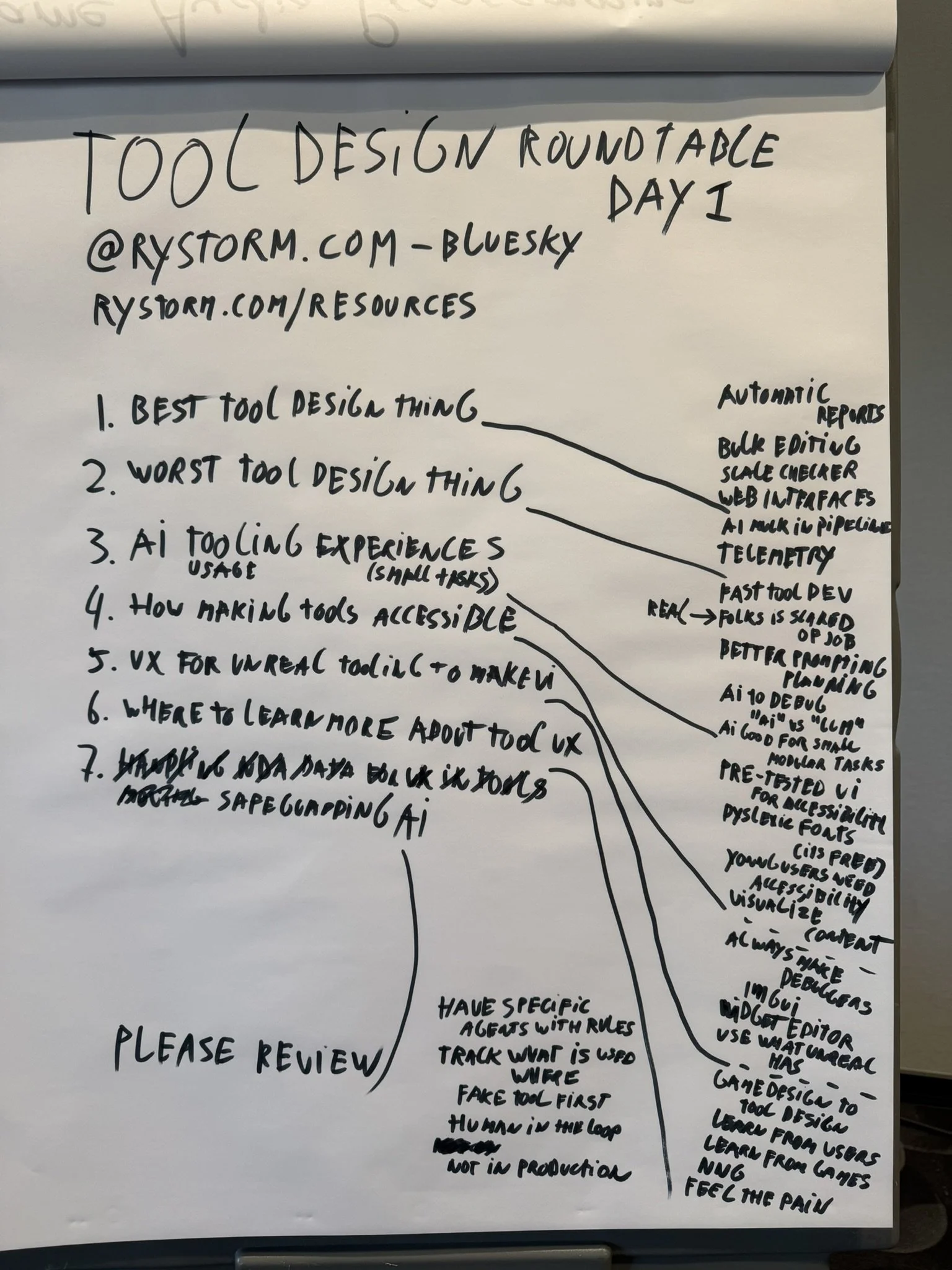
A photo of the paper board on which notes of the first day of the Tool Design Roundtable is written